Hack Google Chrome Browser
without Crashing
Simple Hack to Use Multiple Tabs in Google Chrome Browser without
Crashing
The internet has a significant role in every individual’s life in
this advanced digital world. Earlier, professionals and some other business
people had the necessity of the internet in order to make their business
transactions or some other works. But, nowadays, it has become a very common
entity that everyone can browse the internet via any medium as we are getting
smartphones at an affordable price range. Even a small kid is owning a
smartphone for some or the other purpose. While browsing the internet on any of
the browsers like Google Chrome, Mozilla Firefox or Opera, we make
use of multiple tabs so that you could work on many things simultaneously.
For instance, if you’re accessing the internet via the Chrome
browser, you might have the custom of opening multiple tabs at a time.
Multitasking can be done by opening multiple tabs on a single chrome browser so
as to accomplish your tasks concurrently. Usually, people like to have
hundreds of Google Chrome tabs open at the same time and if you do so, you
might have noticed your laptop’s performance and battery life suffering. In a
perspective, our work gets completed, but indeed, it slows down the browsing
speed eventually affecting the performance of your device.
Most of us might open more than 20 tabs at a time that, but even
then it shows some difference in the fastness, slows down everything and
sometimes it might crash the browser itself. Running all
those web pages can take a damage on your device, particularly if they’re very
memory exhaustive. But, if you close all the tabs completely might make you
lose something you planned to come back to later.
Simple Hack to Use Multiple Tabs in Chrome Without Crashing Down
There are some simple tweaks so that you can run multiple tabs in Google Chrome web browser without
crashing or slowing down. Here is a simple trick you can do it
with much ease that reduces the strain on your PC or laptop, without
closing them completely.
·
Initially, Click on the ‘More
tools’ button in Google Chrome. The three lines that
appear in the top-right corner, to the right of the URL field.
·
Upon clicking the ‘More
tools’, just hover over this button and click ‘Task manager’ in
the new menu which pops up.

·
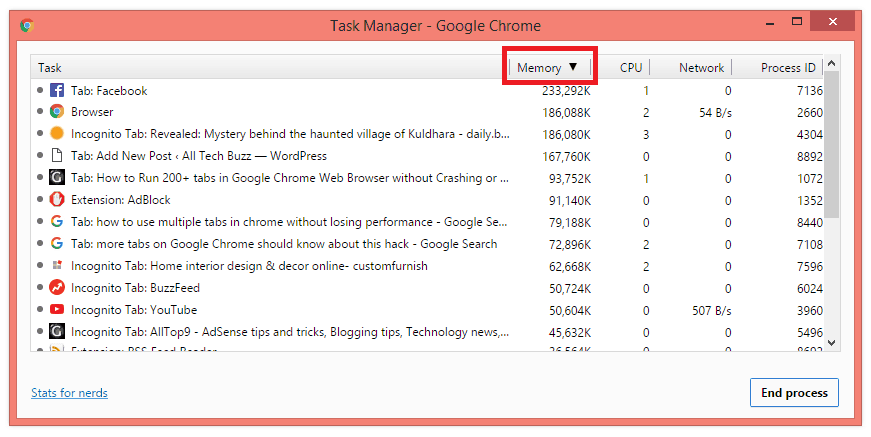
You’ll then get a list of
all the tabs your browser is running, along with information about how much
memory they’re using up.
>>Play Hidden Game in Google Chrome<<
·
By clicking the ‘Memory’ button
in the top bar, you can sort all the tabs to see which are using the most.
·
You can make the task
manager window a bit bigger and increase the size of the columns, showing
information about all the tabs you’ve got open.

·
If you wish to kill some of
the running tabs and free up memory, just click on that particular tab and
press the ‘End process’ button in the bottom-left.

· This will get rid of the
page, replacing it with Chrome’s ‘Aw, Snap!’ error
warning.
· It won’t take up any
memory, but if you need to go back to it later, you can find it again by
scrolling through your tabs and refreshing the page.
A web developer namely Primoz Cigler found that by using the task
manager to shut some annoying tabs, he managed to increase his laptop’s battery
life with just a few clicks. It’s considerably far from a precise fix, and it’s
not possible to be practicing it all the time but, if you’re working on your PC
or laptop and you need all the battery life and memory you could get, it’s a
pretty good solution. Hope this simple hack helps you in the best way to
improve your device’s battery life even after using multiple tabs on Google
Chrome browser.


No comments:
Post a Comment